01
User Data Consent
Give consent to AI analysis & publishing. Without consent your data stays local.
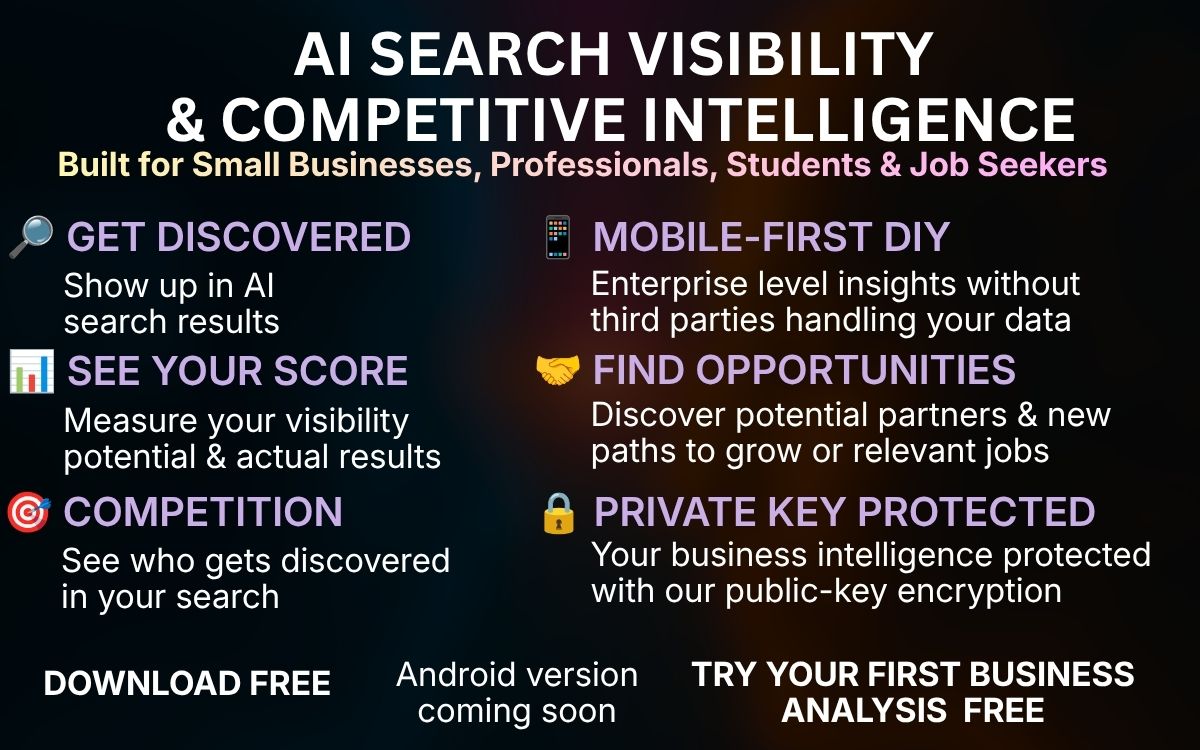
The only mobile-first, DIY visibility app powered by zero-knowledge local cryptography. Visibility • Competitive Intelligence • Recommendations • Opportunities
All Commands from Connect-I Mobile App Visibility Page.
Give consent to AI analysis & publishing. Without consent your data stays local.
Tap on Bio, select different categories like Podcast, Book, Publication, Job role, Degree, Certificates etc. You must fill in your Profile Title. For each categories, you can select between AI only or Public + AI depending on whether you want your information to be displayed publicly in the website or not, for others to find you when they search.
The service area has two components: 1) Add your business service area to help AI and search engines match your business with relevant local searches. 2) If you are seeking job, add the cities or area where you want the job opportunities to be found. You can have both 1 and 2 indicated in your service area.
The about me information is prefilled from the connect page and your business description can also be prefilled if you scan you buisness card in scan page. Review your About Me, Business Description and add your Website information as well as Podcast show if you have one.
Creator Seeker roles are prefilled from your role match selection. Your AI Search Visibility recommendations are based on searches for your Creator Categories. If you are seeking job, select Job as a seeker category followed by type of job and position you are looking for. Example: [Job], [Sales], [Manager]
Once you build your portfolio, tap Review (it will require subscription after 1st free trial), and then make update as required before submitting. AI Analysis may take upto 5 minutes, check by tapping Score button.
See your visibility score dashboard, summary and recommendatiion (overall, creator growth and seeker). The creator growth recommendation also shows your job search result if you select job in Seeker category. The seeker recommendation will show how often your creator category keywords appear in search results.
Chat with AI advisor privately as needed for each of the recommendation area. All chat should to relevant to the recommendation only. Update your portfolio, website based on recommenadtion and resubmit for analysis.
Questions, feedback, or colab - drop a note and we'll get back to you.